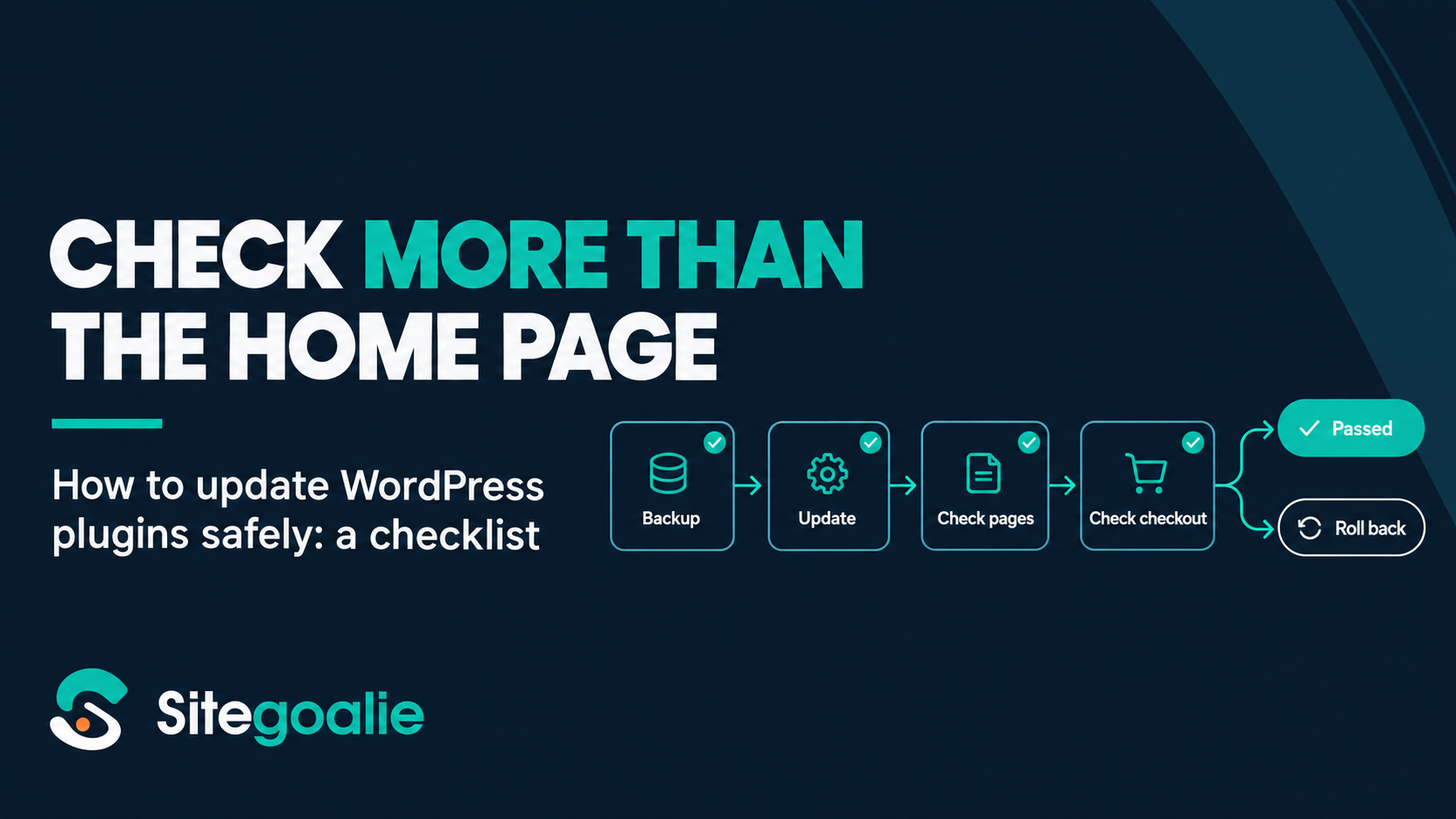
Plugin updates are one of the most routine jobs in WordPress, and one of the easiest ways to break a site without noticing. When an update does cause a problem, it is often somewhere a quick look at the home page will not show: a checkout that no longer loads, a contact form that stops sending, a layout that shifts on one template.
This guide covers what to do before, during and after an update, how to roll back when something goes wrong, and how to handle auto-updates. It is written for anyone who looks after WordPress sites, with a section at the end for agencies updating many client sites at once.
Why plugin updates break sites, and why skipping them is worse
An update changes code that the rest of the site depends on. The usual causes of trouble are:
- Conflicts with other plugins or the theme. Two plugins that worked together on the old versions stop working together on the new ones.
- PHP version requirements. A new version may need a newer PHP than the server runs.
- Big changes. Releases that change settings, remove features or run a database update. Plugin authors do not all number versions the same way, so the changelog tells you more than the version number.
- Custom code built on the plugin. Snippets or child theme code that call a plugin’s functions break when those functions change.
None of this is a reason to stop updating. Security fixes for plugins usually arrive as updates, and once a vulnerability is published, sites still on the old version are exposed. When a plugin is abandoned or a fix is slow to arrive, the answer may instead be to disable or replace it. A site that skips updates for months also builds up a much bigger, riskier batch for whoever finally runs them. The answer is to update regularly and carefully, not rarely.
Before you update
A few minutes of preparation make update problems much easier to recover from.
1. Take a backup you know you can restore
Take a fresh backup of files and database right before updating, with a plugin such as UpdraftPlus or your host’s backup tool. Store it off the server, and check at least once that you can actually restore from it. A backup that has never been restored is a hope, not a plan.
2. Read the changelog for anything more than a small update
On the Plugins screen, click “View version details” next to an update. Don’t judge the risk by the version number alone, because plugin authors do not all use it the same way. Read the changelog and any upgrade notes, and look for removed features, changed settings, required database updates and new minimum versions. The more of those you see, the more carefully you test.
3. Check the requirements
The version details show “Requires PHP” and “Tested up to”. If the update needs a newer PHP than your server runs, hold the plugin back for now. Moving to a newer PHP is its own change: check that the theme and the rest of your plugins support it, and test it separately before updating the plugin. “Tested up to” an older WordPress version is not a blocker on its own, but it is a reason to test more carefully.
4. Write down what must keep working
Make a short list of the pages and actions that matter on this site: the home page, a few key pages, the checkout on a shop, the main contact form, logging in. This is the list you check after the update. Without it, “the home page loads” becomes the only test, and that is how broken checkouts go unnoticed for days.
How to update WordPress plugins
There are four common ways to run the update itself.
From Dashboard > Updates
WordPress lists every available update on one screen. Tick the plugins you want and click “Update Plugins”. It is quick, but updating many plugins at once makes it hard to tell which one caused a problem.
From the Plugins screen
Click “Update now” under a single plugin. This is the easiest way to update one plugin at a time, which is the safer habit: update one, check, then move to the next.
With WP-CLI
If you have command-line access, WP-CLI is fast and scriptable:
wp plugin list --update=available
wp plugin update woocommerce
wp plugin update --all --dry-run
--dry-run shows what would be updated without changing anything.
By uploading a zip
Premium plugins without automatic updates can be updated by uploading the new zip under Plugins > Add New > Upload Plugin. Since WordPress 5.5, WordPress offers to replace the installed version with the uploaded one.
One at a time or all together?
It depends on the risk, not on a fixed rule:
- Update on its own, then check: plugins that handle payments, checkout, forms, memberships or bookings, page builders, anything with custom code built on it, and any update whose changelog mentions database changes or removed features.
- Update together with related plugins: add-ons that depend on each other, such as WooCommerce and its extensions, when their notes say they should be updated as a set.
- Batch, then check once: small maintenance releases to low-risk plugins, on sites where a short problem would not cost much.
If a batch does cause a problem, you will have to find which plugin did it, so keep batches small on sites that matter.
After you update
First clear your page and object caches, and any CDN cache, so you test the new version rather than a cached copy of the old one. Then go through the list you made before updating, ideally in a private browser window:
- Key pages. Load them and look properly: layout, images, menus, anything the plugin affects.
- Checkout. On a shop, add a product to the cart and go through to the checkout page. Check the form and payment options appear.
- Forms. Submit the main contact form and check the message actually arrives, or is stored where it should be. A form that renders but does not send is exactly the kind of problem that goes unnoticed.
- wp-admin. Open the Dashboard, the Plugins screen and a list of posts.
- Errors. If
WP_DEBUG_LOGis on, checkwp-content/debug.log. Your host’s error log is worth a look too.
When an update breaks your site
If the site shows “There has been a critical error”
Since WordPress 5.2, when a plugin causes a fatal error, WordPress usually emails the site’s admin address a special recovery mode link, if email from the site is working. Use it to sign in: the faulty plugin is paused for you only, while visitors still see the error, so deactivate or fix it straight away. If the email never arrives, use the method below.
If you cannot reach wp-admin at all
Deactivate the plugin by renaming its folder. Connect with SFTP or your host’s file manager, go to wp-content/plugins/ and rename the plugin’s folder, for example from some-plugin to some-plugin-off. WordPress will treat it as missing and deactivate it.
Getting the old version back
You have three options:
- Install the previous version. For plugins from WordPress.org, older versions are often available on the plugin’s “Advanced View” page, when the developer has published them there. Download the version you had and upload it as a zip.
- Restore just the plugin from your backup, if your backup tool supports partial restores.
- Restore the whole backup. This puts everything back as it was, but anything that changed since the backup, such as new orders or form entries, is lost. If the update ran a database change, reinstalling the old plugin files alone may not be enough, which is another reason to check before restoring a busy shop.
What WordPress now does on its own
WordPress has added two safety nets in recent versions, and it is worth knowing their limits:
- WordPress 6.3 keeps a temporary copy of the old version while a plugin or theme updates. If the update process itself fails, WordPress puts the old version back. If the update succeeds, the copy is deleted, so it cannot be used to roll back later (announcement).
- WordPress 6.6 loads the home page after an automatic plugin update. If it finds a PHP fatal error, or the page request itself fails, it restores the previous version and emails the site admin (WordPress 6.6 field guide, how it works).
Both help, but neither looks at how the site behaves afterwards. An update that installs cleanly and leaves the home page loading, while breaking the checkout, a form or a layout, gets through both.
Should you turn on auto-updates?
WordPress has let you turn on auto-updates plugin by plugin since version 5.5, from the Plugins screen. Whether to use them depends less on the kind of plugin than on a few questions:
- Does the plugin have a good update record, from a developer who ships carefully?
- How much would a short problem cost on this site?
- Would you notice quickly if something broke, and could you undo it?
Auto-updates are a good fit for well-maintained plugins on sites where the answers are reassuring: a short problem would not cost much, and you have a recent backup and a way to spot breakage.
Think twice for WooCommerce and its payment gateways, page builders, membership and booking plugins, and anything with custom code built on top. For those, a problem that the 6.6 rollback does not catch, such as a broken checkout, can go unnoticed until a customer complains.
A middle ground is to leave auto-updates off for high-risk plugins and update them yourself on a regular schedule, with the checks above.
Updating plugins across many client sites
For agencies, the job is the same, repeated across 10, 50 or 100 sites. What makes it manageable is routine:
- Pick a maintenance day for each site, ideally in its quietest hours, so updates happen on a schedule rather than at random times.
- Sort plugins by risk, using the rules above: high-risk plugins on their own with full checks, low-risk ones in small batches.
- Check the same things on every site: key pages, checkout and forms, and wp-admin.
- Keep a record of what was updated, when, and what was checked. It is your answer when a client asks what changed, and it shows them the care the site gets.
Doing all of this by hand for dozens of sites is slow, which is why it tends to slip. Sitegoalie’s Safe Updates automates the backup, update and testing parts of this routine, one update at a time: it takes a backup first, screenshots and compares key pages, and tests checkout, forms and wp-admin before and after each update. It rolls back automatically on a fatal error or when checkout or wp-admin breaks, and flags visual changes and form problems for you to review.
The checklist
Before:
- Fresh backup, stored off the server, restore tested at least once
- Changelog and upgrade notes read, whatever the version number
- “Requires PHP” and “Tested up to” checked
- List of key pages and flows to check
During:
- High-risk plugins updated on their own, low-risk ones in small batches
- Updated from the Plugins screen, Dashboard > Updates, WP-CLI or a zip
After:
- Caches cleared first
- Key pages look right
- Checkout works, on shops
- Main forms send and arrive
- wp-admin loads
- No new errors in the logs
If something broke:
- Recovery mode link, or rename the plugin folder
- Previous version reinstalled, or backup restored
Frequently asked questions
How often should I update WordPress plugins?
There is no single right interval. A regular weekly or fortnightly maintenance day keeps each batch small and easy to check. Security updates are the exception: when an update fixes a vulnerability that is being exploited or is serious, apply it as soon as you can check it rather than waiting for the next scheduled day.
Should I update WordPress core or plugins first?
There is no single rule. Read the notes for each update: if a plugin update requires a newer WordPress version, update core first; if your plugins are not yet ready for a new WordPress version, update the plugins first and hold core back. Either way, do one step at a time with checks in between, rather than core, theme and all plugins in one go, because that makes problems hard to trace.
Is it safe to update WordPress plugins?
Yes, when you prepare for it. A backup, a look at the changelog and checks afterwards make it much more likely you spot a problem quickly, and give you more ways to recover from it. Recovery is harder when an update changed the database or new orders came in after it, which is why checking straight away matters. Leaving plugins out of date carries its own risk, because known vulnerabilities stay open.
Should I turn on automatic plugin updates?
For well-maintained, low-risk plugins on sites where a short problem would not cost much, yes. For shops, page builders and plugins with custom code built on them, update by hand or with a tool that checks the site after each update, because WordPress’s automatic-update rollback only reacts when the home page hits a PHP fatal error or fails to load.