Short answer: What should a WordPress care plan include, and how do I price it?
A WordPress care plan is a recurring service in which you keep a client’s site updated, backed up, monitored and supported for a fixed monthly fee. Include tested updates, restorable backups, uptime, SSL and domain monitoring, basic security, a regular report and a stated amount of support, and price it from your own time per site, your tool cost per site and a target margin on price that covers overhead and profit. This guide shows that method with an illustrative example, checked against WordPress documentation on 2026-10-05.
If you look after 5 to 100 client sites, you probably already do most of this work, often unpaid inside project retainers. A care plan turns it into something you scope, price and report on. Done badly, it becomes unlimited support at a flat fee, which loses money slowly and then quickly.
What a WordPress care plan is, and what it is not
A care plan (also called a maintenance plan) is a recurring service sold to a client: you agree to do a defined set of maintenance jobs on their site every month, and they pay a fixed fee. The word “defined” is the important part. A care plan is not hosting, not a promise that nothing will ever break, and not a retainer for any work the client thinks of.
It helps to keep three things apart: maintenance (the routine jobs the plan covers), support (questions and small changes, included in a stated amount) and projects (new pages, redesigns, features, quoted separately). If the agreement does not separate them, arguments will.
What to include in a care plan
Use this list to decide what goes in the base plan. Not every item has to be in every tier, but every item you do include should be named in writing.
Updates, and how they are tested
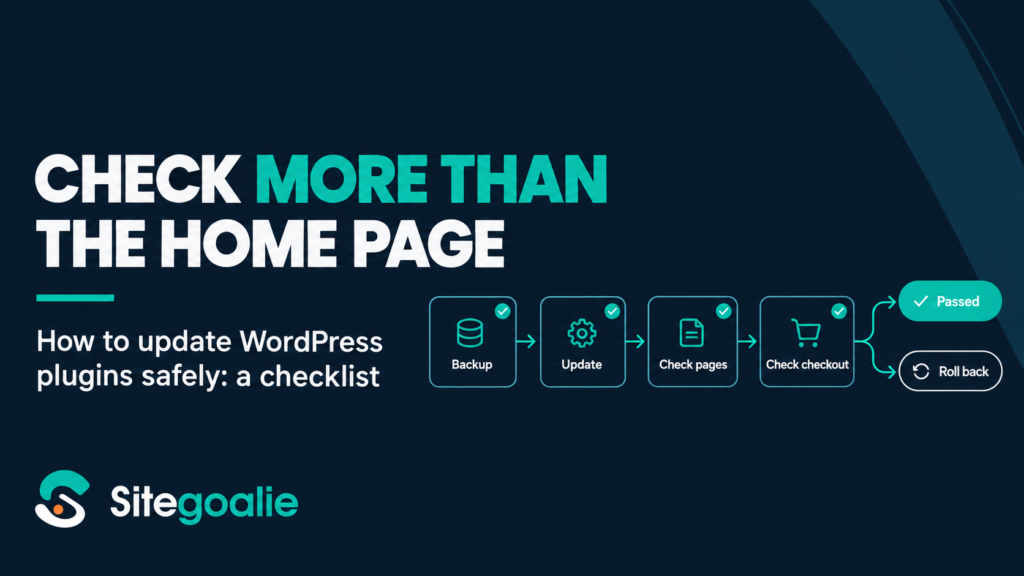
Updates to plugins, themes and WordPress core are the core of the plan, and a recurring source of change that can cause incidents. Say how you do them: on what schedule, in what order, and what you check afterwards. A short written routine is better than a vague promise to “keep everything up to date”. Our guide to updating WordPress plugins safely covers the routine in detail: backup first, read the changelog, update high-risk plugins on their own, and check key pages, checkout, forms and wp-admin afterwards.
Be honest about what WordPress does by itself. Since 6.6 it rolls back an automatic plugin update when it detects a PHP fatal error (WordPress 6.6 field guide, checked 2026-10-05). That reacts to fatal errors; it does not notice a vanished checkout button or a form that stopped sending. Your plan is where that checking is promised.
Backups, and restore tests
State how often backups run, where they are stored, how long you keep them, and that you test a restore, for example once a quarter on tiers that include it, with the date recorded. Also decide who controls the backup account and storage, what the client can receive if they cancel and how long you keep copies, and write each into the agreement.
Uptime, SSL and domain monitoring
Three things worth monitoring: whether the server responds, whether the SSL certificate is about to expire, and whether the domain is about to lapse. They are not the only causes of downtime, but they are cheap to watch. Monitor all three and write down who gets each alert. Say in the agreement who is responsible for renewing the domain, and if it is the client, warn them in time.
Security
Define security as specific tasks, not a guarantee: removing unmaintained plugins and themes, acting on published plugin vulnerabilities, sensible user roles, a short set of hardening settings. Decide in advance whether cleanup after a compromise is included or billed separately, and say so in the agreement.
Performance
Keep it measurable: a periodic speed test of the home page and a key page, and action on regressions you caused. Ongoing optimisation belongs in a higher tier.
Reporting
A report is how a client sees the work they pay for. It has its own section below.
Support time and response times
Say how clients ask for help, how much time per month is included and how quickly you respond. Separate response time (you acknowledge and start looking) from resolution time (it is fixed). You can commit to the first; the second depends on plugin authors and hosts.
How to structure tiers
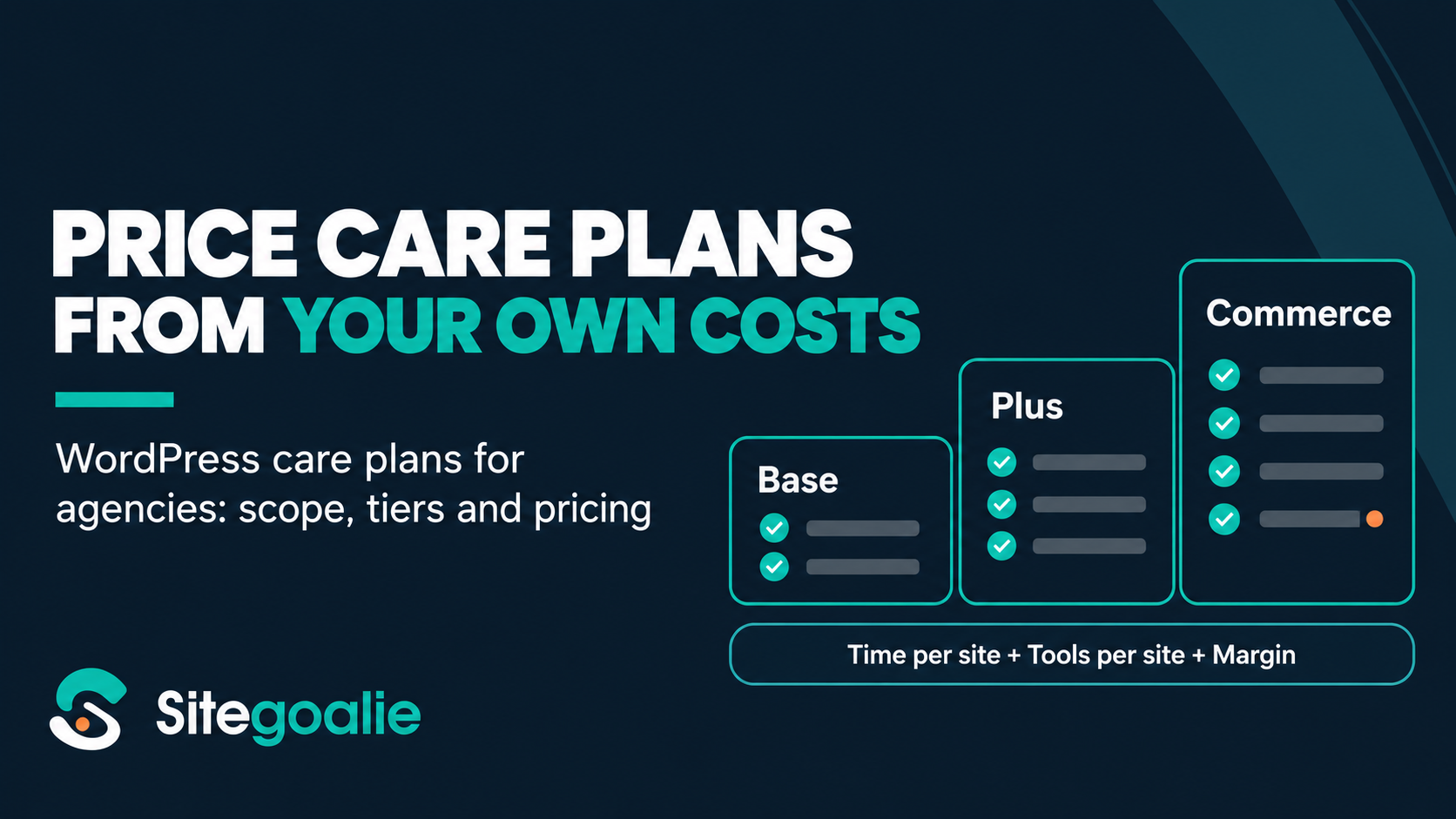
Three tiers is one workable model. The pattern matters more than the names.
| Tier | Who it suits | Typical contents |
|---|---|---|
| Base | Brochure sites and blogs | Scheduled updates with checks, backups, uptime, SSL and domain monitoring, a monthly report, a small support allowance |
| Plus | Sites that change often or matter more to the business | Everything in Base, plus included dev or content hours, a faster response commitment, quarterly restore tests, a review call |
| Commerce | WooCommerce and membership sites | Everything in Plus, plus checkout testing after updates that can affect the shop, order and form checks, and a tighter response commitment |
Two rules keep the tiers honest. First, each tier should differ in something the client can see: hours, response time, checking, reporting. If tiers differ only in a label, clients pick the cheapest. Second, ecommerce is a separate tier because it is separate work: more plugins, more testing for updates that can affect the shop, and a direct cost to the client when checkout breaks. A shop on the base price may be your riskiest site at your lowest margin.
Say in the agreement exactly what the Commerce tier tests. A non-transactional checkout run (add a product to the cart and reach the payment step) is one option, and a test-mode or sandbox payment is another where the payment gateway supports it. Never test with a real charge. Define which updates trigger the test, for example commerce plugins, the theme, WordPress core and the payment gateway.
How to price a care plan from your own costs
You will find “typical” care plan prices all over the web. They vary widely and say nothing about your costs, so this guide quotes none. Work out your own price in five steps.
- Time per site per month. List every recurring task and give it an honest number of minutes: updates and checks, monitoring follow-up, the report, a support allowance. Track real time on a handful of sites rather than guessing.
- Your hourly labor cost. Use what an hour of the person doing the work actually costs you (pay plus employment costs, or the rate you pay a contractor), not the rate you bill clients. A billable rate already includes overhead and profit, and using it here would count them twice.
- Tool and storage cost per site. Add up your monitoring, backup storage, reporting and update tools, and divide by the number of sites they cover.
- Target margin on price. Steps 1 to 3 give your direct cost: the labor cost of the plan’s tasks plus per-site tool costs. Decide what share of the final price you want left after that direct cost (a gross margin on price, not a markup on cost). This margin must also cover everything you left out of the direct cost, such as account management, fixed software, payment fees, sales and admin and unbilled time, plus your profit. If you would rather see overhead as its own line, add it to the direct cost before applying the margin, but do not count it twice.
- Allow for variability. Support requests, incidents and monitoring follow-up differ from month to month. Price them from observed averages plus a contingency allowance, and consider reviewing prices after about 3 months of actual utilisation. This is a suggested practice, not a validated rule.
The formula is: price = (time x labor cost per hour + tool cost per site) / (1 – margin), where the margin is a share of the price left after direct cost, to cover overhead and profit. Dividing by one minus the margin is not the same as adding a percentage on top; it keeps the margin as a true share of the price.
A worked example (hypothetical, not market data)
The numbers below are invented to show the method. Replace every one with your own.
Assume a base-plan site takes 60 minutes a month in total (30 for updates and checks, 10 for monitoring follow-up, 10 for the report, 10 for support), an hour of labor costs you 60, your tools and backup storage cost 5 per site per month, and you want a 25 percent margin on price, to cover overhead and profit. (A 25 percent markup on cost would give 81.25 instead; the formula below keeps 25 percent of the price.)
- Time cost: 1 hour x 60 = 60
- Tool cost: 5
- Direct cost: 65
- Price: 65 / (1 – 0.25) = 86.67, which you would round to a clean number
Now a shop. Assume 105 minutes a month because of checkout testing and more plugins, and 8 per site in tool and storage cost. Time cost is 1.75 x 60 = 105, direct cost 113, and the price is 113 / 0.75 = 150.67. In this example the shop costs more to look after because of the assumptions chosen. The point is not the totals: measure the real time on your own shops and brochure sites, and let the price follow what you find.
Two sanity checks before you publish prices:
- Capacity. Multiply monthly hours per site by your number of sites. If that exceeds the hours you can spare, raise prices, automate part of the routine or take fewer clients.
- Overrun. If real support time per site is regularly above the allowance, the allowance or the price is wrong.
To run these numbers for three tiers at once and check your capacity, try the free care plan pricing calculator.
What to put in the agreement
The agreement does more work than any other part of the plan. It must be specific, not long. This is not legal advice; have a lawyer review your final terms.
- Scope. The included tasks and the schedule for each, named: “plugin, theme and core updates weekly, with checks of key pages, forms and, on shops, checkout”.
- Exclusions. New features and design, content, migrations, recovery from a compromise that began before the plan, third-party service failures and custom code you did not write. Exclusions are what make the included work affordable.
- Support and response times. Channel, hours, response commitment, and what counts as urgent (site down, checkout broken).
- Included hours and overage. Whether unused hours roll over, and the rate for extra work. State the rule either way.
- Who holds what. Hosting, domain, premium licences, analytics and email accounts: who pays and whose name each is in. A licence held in the agency’s account can complicate a cancellation. For backups, state who controls the backup account and storage, what the client can receive at cancellation and for how long you keep copies.
- Client responsibilities. Keep hosting and domain paid, give access, and warn you before changes or traffic spikes.
- Limits of liability. What you do and do not guarantee. “We take backups and test restores” is stronger than “data will never be lost”.
- Cancellation. Notice period, what you hand over (access, backups, licence list), by when, and whether handover is charged.
- Billing. Monthly or annual, in advance, and late payment.
How to report the work so clients see the value
A client rarely sees maintenance, so the work is hard to review without a record. A one-page monthly report with the same sections each time makes it visible:
- What was updated, and what was checked afterwards
- Uptime and incidents, and how they were handled
- Backups taken and the date of the last restore test
- Upcoming SSL and domain renewals
- Support hours used against the allowance
- One recommendation, such as an unmaintained plugin
Keep copies. When a client asks what they pay for, send the last three reports. The numbers also warn you when a site keeps using more hours than it pays for.
Tools for the update, monitoring and reporting part
You can run all of this with a spreadsheet and separate tools, and many agencies start that way. What slips as sites multiply is the repeated work: testing each update, watching monitors, producing reports. Tools that cover those parts cut time per site, which feeds back into your price.
Sitegoalie is one, built for agencies and freelancers with 5 to 100 sites. Its Safe Updates needs a successful backup from the last 24 hours: when there isn’t one, it can start one (its own backups if they are switched on for the site, or UpdraftPlus), and otherwise the update waits. It can compare screenshots and test checkout, forms and wp-admin before and after the update (each check can be switched off, and screenshots depend on browser capacity), rolls back automatically on a PHP fatal error or when checkout or wp-admin breaks, and flags visual changes and form failures for review. It also monitors uptime, SSL and domain expiry and sends monthly white-label PDF reports. See pricing for plans. Whatever you use, make sure it matches what your plan promises.
Common mistakes
- Unlimited support. A flat fee for unlimited changes rewards the clients who ask the most. Give an allowance and a rate beyond it.
- No exclusions. Without them every request is arguably in scope.
- Backups nobody has tested. An untested backup is an assumption. Schedule restore tests and keep the dates.
- Updating without testing. “Update all” and a glance at the home page is not a care plan; the checks in the safe update routine are what clients pay for.
- Underpricing ecommerce. Shops can need more time and carry more risk, so measure them separately.
- Copying a competitor’s price. Their rates, tools and scope are not yours.
- No owner for licences and domains. Decide who holds each account up front.
- Never revisiting the price. Review it yearly against real hours per site and give clients notice of changes.
What to do next
- Time yourself. For a month, record real minutes per task on five sites of different kinds.
- List your tool costs and divide by the sites each covers.
- Run the formula for a base site and a shop and compare with what you charge today.
- Write the one-page scope and agreement and get it reviewed.
- Build the monthly report and run it on one existing client first.
For the update routine itself, start with our guide to updating WordPress plugins safely. As one input to auditing a site before you quote it (not the whole audit), open Tools > Site Health in wp-admin: its Status tab groups issues into critical issues, recommended improvements and passed tests (WordPress Site Health documentation, checked 2026-10-05).
Frequently asked questions
What is a WordPress care plan?
A WordPress care plan is a recurring service in which an agency or freelancer maintains a client’s site for a monthly fee. It usually covers updates, backups, monitoring, security tasks, reporting and a set amount of support. It differs from a project, which has a fixed end.
What is the difference between a WordPress care plan and WordPress maintenance plans?
There is no technical difference; the terms are used interchangeably. Some agencies use “care plan” for a plan that includes support hours and reporting, and “maintenance” for updates and backups only. Whatever you call it, the scope in the agreement is what counts.
How do I set WordPress care plan pricing?
Price from your own costs: the time each site takes per month multiplied by your hourly labor cost (not your billable rate), plus tool and storage cost per site, divided by one minus your target margin on price. That margin has to cover overhead such as account management, fixed software, payment fees and unbilled time, plus profit. Track real minutes first, and measure shops separately because they may take more time and carry more risk.
How many tiers should a care plan have?
Three tiers is one workable model: a base plan, a plan with included dev or content hours and faster response, and a commerce plan for shops. Make sure each tier differs in something the client can see, such as hours, response time or checking, not only in its name.
Should a care plan include unlimited support?
No. Unlimited support at a flat fee puts no ceiling on your time while the fee stays fixed. Include a stated number of hours, say how unused hours are handled and set a rate for extra work.
What should I do if a client’s site is hacked while on a care plan?
Decide this before it happens and write it into the agreement. Cleanup can be billable work outside the plan, or included only for sites onboarded with a clean security check. Promising that a site will never be compromised is not something you can guarantee.
Who should own the backups and licences?
Decide per item and write it down. For backups, state who controls the backup account and storage, what the client can receive if they cancel and how long you keep copies. Say whose name the domain and hosting are in, and register premium licences to whoever will keep paying for them.
How do I show clients the work was done?
Send the same short report every month: updates applied, checks run, uptime and incidents, backups and restore tests, upcoming renewals, support hours used and one recommendation. Keep copies, so you can show a client a full quarter of work when they ask what they pay for.