An update went out, and now a client’s site shows a white screen, a fatal error or a checkout that no longer works. The pressure is to do something fast. The safer move is to do the smallest thing that works, in the right order, so a bad update does not turn into lost orders or lost content.
This guide walks through that order: find what broke, choose the smallest rollback, run it, then check the site properly before you tell the client it is fixed.
1. Stop and look before you change anything
Resist the urge to restore a full backup straight away. Restoring the database, or a full backup that includes it, overwrites everything written since the backup was taken, including new orders and form entries. A restore of files only normally does not touch that data.
Before any destructive step, take a backup of the broken site as it is now, files and database, or at least export any new orders and form entries. It is your way back if a rollback makes things worse.
Then find out what actually broke:
- White screen or “critical error” message. In some cases WordPress emails the site’s administration email address a recovery mode link when a fatal error happens. Check that inbox, including spam.
- Layout or design broken. A theme or page builder update is one possible cause, and so is a plugin.
- Checkout, forms or logins failing. A plugin update is one possible cause, for example a payment, forms or caching plugin.
- Only one page or feature affected. That can point to a single plugin rather than core, but it does not prove it.
Look for evidence rather than guessing: the recovery mode notice, your host’s PHP error log, and the times each update ran. Note what you updated and when. If several things updated at once, the cause may be one of them or a conflict between them, and rolling them back one at a time will narrow it down.
2. Pick the smallest rollback that works
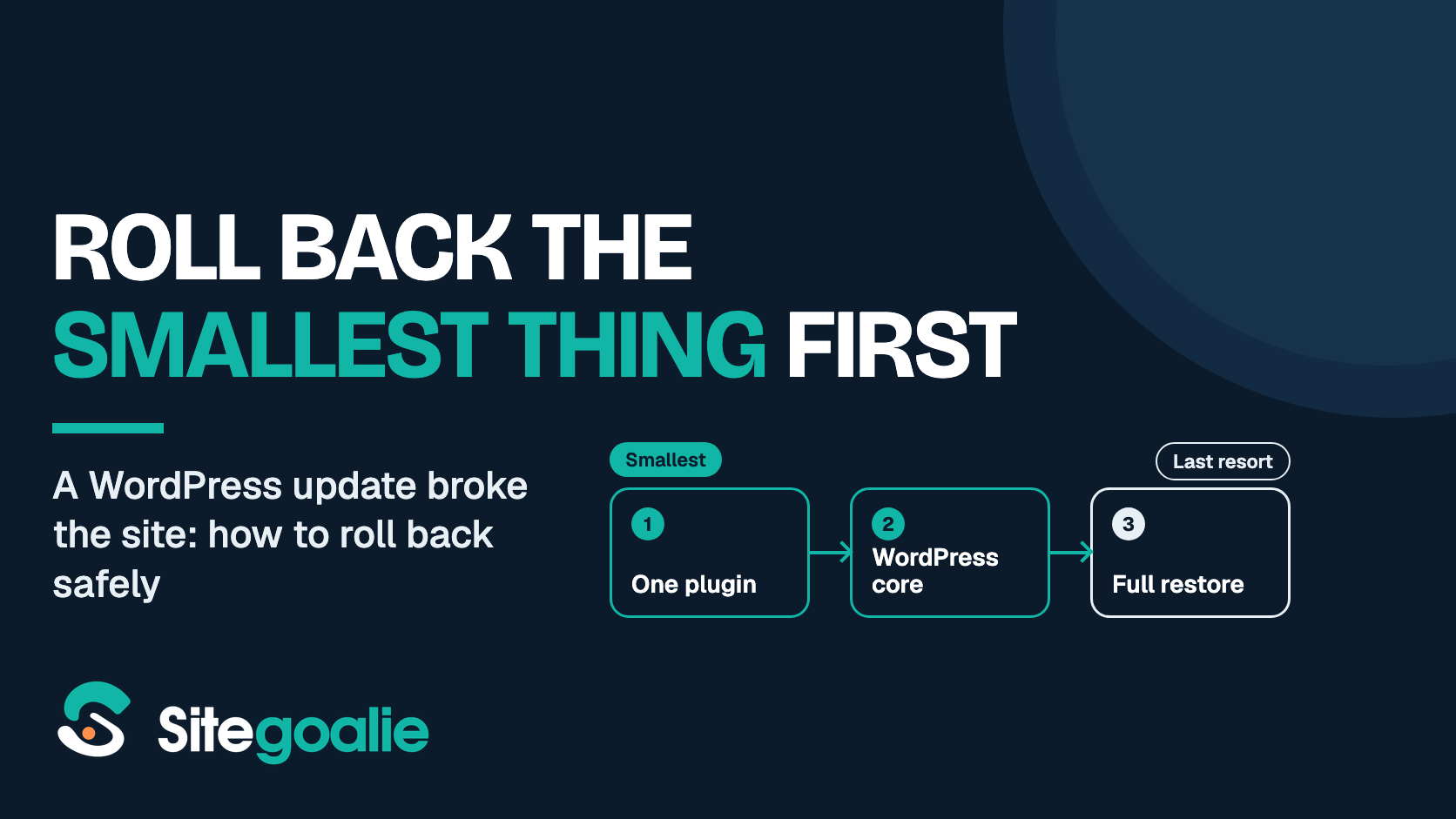
Work from the least disruptive option to the most:
- One plugin. Roll back only the item you suspect, using the methods in section 3. This guide does not cover rolling back a theme: if a theme update broke the site, follow the theme vendor’s instructions or restore a full backup (option 3). Do not rename the active theme’s folder, because WordPress may switch to a different installed theme.
- WordPress core. This guide does not cover a files-only core rollback. Core updates can change the database, so putting the old files back can leave files and data out of step. If the break started right after a core update and no plugin explains it, restore a full backup (option 3) or get your host’s help.
- Full restore from backup. The last resort, because it discards changes made after the backup.
Two questions decide the path. Did the update change the database? If it may have, a file-only rollback may not match the data. Has new data, such as orders or form entries, arrived since the backup? If it has, restoring the database will lose it, so export it first.
3. Three ways to roll back
a) Switch off the broken plugin without wp-admin
If you cannot log in, connect over SFTP or your host’s File Manager, open wp-content/plugins/ and rename the suspect plugin’s folder, for example plugin-name to plugin-name-off. WordPress deactivates a plugin whose folder it cannot find. If the site comes back, that plugin is involved, although the underlying cause may be a conflict with another plugin, the theme or the server environment. This is a temporary switch-off, not a rollback: leave the plugin disabled until a compatible version or fix is available.
b) Reinstall the previous version
With WP-CLI, you can install a specific version from WordPress.org over the current one. The WP-CLI documentation for wp plugin install lists --version=<version> (“get that particular version from wordpress.org, instead of the stable version”) and --force (“overwrite any installed version of the plugin, without prompting for confirmation”). Together:
wp plugin install plugin-slug --version=1.2.3 --forceThis works for plugins distributed through WordPress.org. For a commercial plugin, install a zip or URL supplied by the vendor.
Without WP-CLI, open the plugin’s page on WordPress.org, use the Advanced view to find older versions and download the zip for the version you want. WordPress.org warns that previous versions may not be secure or stable, so treat this as a stopgap and move to a fixed release as soon as one is out. Rename the current plugin folder to keep it as a recoverable copy, for example plugin-name-broken, then upload the older version as a clean folder. Copying over the top can leave files from the newer version behind. Commercial plugins may offer older versions in the vendor’s account area, and the vendor’s own rollback instructions come first.
Two cautions. A plugin update can include a database change, so an older plugin file set may not match the data. And some plugins refuse to run on an older database version. If the older version misbehaves, go to option c.
c) Restore from backup
Restore both files and the database from the backup taken before the update. Know what you will lose: any orders, comments, form entries or edits made between the backup and now. On a busy store, export recent orders and entries first using the store or form plugin’s own export. Do not copy database rows across by hand: orders and similar records are spread over several tables.
The WordPress developer handbook on backups says to back up your database regularly, and always before an upgrade, and to keep at least three to five recent backups in different locations such as the host, the cloud and a local copy. If your only backup lives on the server that just broke, it may not help you.
4. Check the fix properly
A page that returns 200 does not prove checkout, forms, logins or scheduled jobs still work. Before you close the ticket:
- Open the home page, a product or service page, and a blog post.
- Submit the contact and quote forms and confirm the email arrives, using a test entry you can delete afterwards. Skip forms that feed a CRM, trigger payments or start other live workflows unless you have agreed a test method with the client.
- Run a test checkout in the payment gateway’s test or sandbox mode. If there is no test mode, agree a low-value order with the client and refund it, or stop before the payment is taken. Never run a real card through a client’s store without agreeing it first.
- Log in to wp-admin and check the plugin screens you changed.
- Purge the page cache, object cache and CDN, then check again in a private window.
If the site is a client’s, write down which component and versions broke, when the update ran, what you rolled back, whether the database was involved and what you checked. That note is useful when the update comes round again.
5. A note on WordPress’s own rollback
WordPress 6.6 added rollbacks for plugin auto-updates, as described in the core team’s merge proposal. After an automatic plugin update, WordPress makes a request to the home page to look for a PHP fatal error. If it finds one, it restores the previously installed version and emails the site’s administration email address. That is a narrow safety net: it catches a fatal error, not a functional regression. It does not help when an update installs cleanly but changes how your site behaves, such as a checkout that quietly stops taking payments.
6. Stop it happening again
Broken updates tend to come down to the same gaps: no backup taken first, no record of how the site looked before, and no checks afterwards. A safer routine looks like this:
- Make sure a recent backup exists before you update, and that you could restore it.
- Check the key journeys before: screenshots, checkout, forms, wp-admin.
- Update.
- Run the same checks after, and compare.
- Investigate any difference you did not expect. Banners, timestamps and cached content will differ, so roll back only when the update caused a real regression. Keep the backup for a few days.
Doing this by hand across ten or twenty client sites means repeating and recording the same checks every time. Safe Updates in Sitegoalie automates the routine for plugins, themes and WordPress core once you switch it on for a site. Major core releases are never automatic: they need your confirmation and a fresh UpdraftPlus backup. For other updates it needs a successful backup less than 24 hours old before it updates, and compares before and after screenshots when browser capacity allows. It also runs checkout, form and wp-admin checks where those are switched on for the site. It rolls back automatically on a PHP fatal error or when checkout or wp-admin breaks, and flags visual changes above a set threshold, failing forms and new JavaScript errors for you to review. A one-click rollback stays available for 14 days after a passed or flagged update.
For the update process itself, see How to update WordPress plugins safely and WordPress Care Plans for Agencies.